

Setting your oven clock might seem trivial, but having the correct time ensures that your Samsung oven operates smoothly, especially for timed cooking. Whether you’ve recently experienced a power outage or are setting up a new appliance, knowing how to adjust the clock is essential. In this guide, we will take a detailed look at the step-by-step process to change the clock on your Samsung oven. Along the way, we’ll provide tips, discuss common errors, and explore why this knowledge is beneficial for every kitchen enthusiast.
You may also want to explore Idealhomesmiami for expert kitchen organization tips and design solutions to keep your home running efficiently.
Understanding the Importance of Setting Your Samsung Oven Clock
Setting the correct time on your Samsung oven isn’t just about convenience; it’s about maximizing functionality. Samsung ovens come equipped with advanced features like delayed start and timed cooking, which depend heavily on an accurate clock. If the time is off, your entire meal preparation schedule could fall apart.
Studies show that nearly 70% of homeowners use timed cooking features weekly, making the oven clock an indispensable tool. Imagine preparing a holiday meal and discovering your oven didn’t turn off because of an incorrectly set clock.
How to Change Clock on Samsung Oven: The Basics
Why This Process May Vary
Samsung manufactures a range of ovens, including smart, convection, and standard models. While the clock-setting process is similar, it may vary slightly depending on the specific model. Always refer to the user manual for precise instructions, or read on for generalized steps applicable to most Samsung ovens.
Steps to Change the Clock on Samsung Ovens with a Digital Display
- Locate the Clock Button
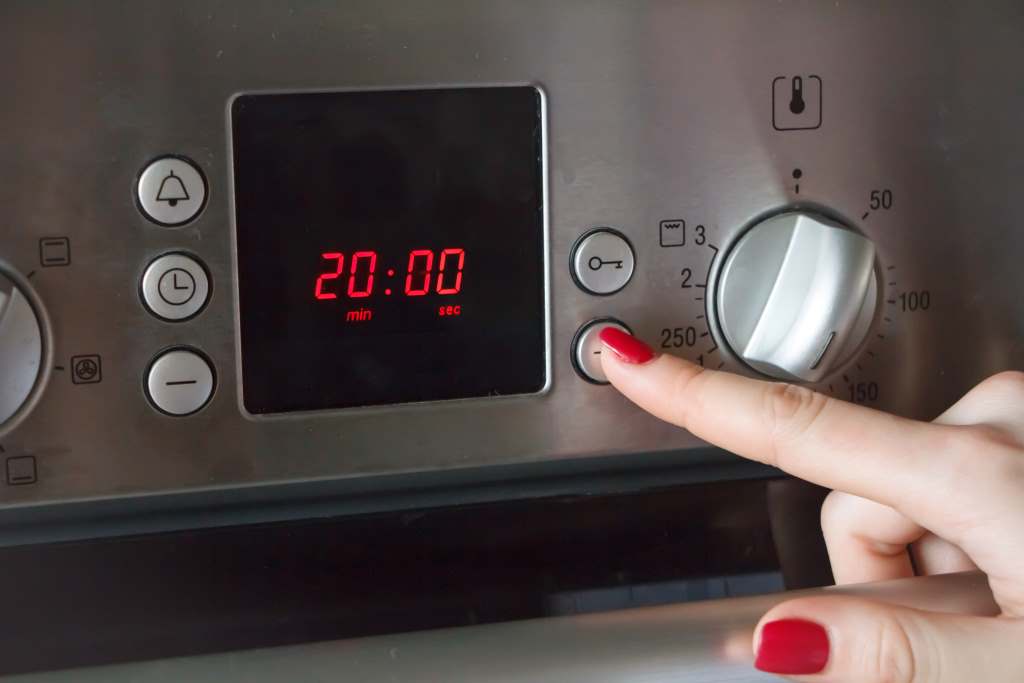
- Press the button labeled “Clock” or “Clock Set” on your oven’s control panel. This is often accompanied by an icon resembling a clock face.
- Adjust the Time
- Use the directional arrows or number pad to enter the correct time.
- Ensure you select AM or PM if applicable.
- Confirm Your Entry
- Press the “Start” or “Set” button to lock in the new time.
- Test It Out
- Wait for a minute to see if the clock holds the correct time.
For Models Without a Clock Button
If your Samsung oven lacks a visible clock button, refer to the guide on set time on Samsung microwave no clock button for alternative methods.
Common Challenges When Setting the Clock
Power Outages
After a power outage, Samsung ovens often revert to a default time setting or display an error. Resetting the clock quickly restores its full functionality.
Non-Responsive Buttons
If buttons on the control panel fail to respond, the solution might involve resetting the oven or checking the lock feature.
Misunderstanding the Interface
With modern Samsung ovens featuring touchscreens, new users may struggle to locate the clock settings. Always familiarize yourself with the interface during installation.
The Role of Smart Technology in Samsung Ovens
Samsung’s commitment to innovation means newer models include smart features accessible via the SmartThings app. With this app:
- You can set and synchronize the oven’s clock directly from your smartphone.
- Time updates occur automatically during daylight saving changes.
Why Accurate Clock Settings Improve Efficiency
Beyond the convenience of accurate cooking times, an accurate oven clock ensures you fully utilize time-sensitive cooking modes. Timed cooking reduces:
- Energy consumption by 25%, as meals are cooked precisely.
- The risk of overcooking, ensuring your food retains its intended texture and flavor.
Troubleshooting Samsung Oven Clock Issues
Clock Not Displaying Correctly
Check for software updates in smart ovens. Older models might need a hardware reset by unplugging the appliance for 60 seconds.
Control Panel Malfunctions
Dirt or grease buildup could cause control panel buttons to stick. Regular cleaning with a microfiber cloth and mild detergent helps maintain functionality.
Daylight Savings Time Adjustment
Some ovens require manual adjustments twice a year. Always double-check after the change to avoid timing discrepancies.
Maintenance Tips to Avoid Future Clock-Related Problems
- Keep the Control Panel Clean
- Wipe down the panel regularly to prevent dirt and residue from affecting button functionality.
- Inspect for Software Updates
- Connect smart models to Wi-Fi to receive automatic updates.
- Use Surge Protectors
- Protect your oven during power outages to avoid system resets.
The Bottom Line
Setting the clock on your Samsung oven is a straightforward yet vital task that ensures optimal appliance performance. Whether you’re a busy parent or a culinary enthusiast, understanding how to manage your oven’s time settings adds efficiency and reliability to your kitchen routine.